
To help you meet accessibility standards, the Complianz WordPress plugin now includes a built-in WCAG contrast checker. This tool helps you make sure your cookie banner colors are readable for everyone. You can check color contrast right inside the banner styling settings as you pick custom colors. It gives you instant feedback, so you can adjust before saving.
What WCAG means
WCAG stands for Web Content Accessibility Guidelines. These rules make sure websites are usable by everyone, including people with visual impairments, low vision, or color blindness.
A key part of WCAG is color contrast, meaning how different the brightness is between text and its background. Higher contrast makes text easier to read.
WCAG uses three rating levels:
- A – minimum accessibility
- AA – recommended for most websites
- AAA – the highest and most readable level
To meet AA, normal text must have a contrast ratio of at least 4.5 to 1, while large text (18 px or bold 14 px and larger) must be 3 to 1.
For AAA, normal text must reach 7 to 1, and large text 4.5 to 1.
Example
- Black text on a white background has a ratio of 21 to 1 (excellent).
- Light gray text on a white background has about 2 to 1 (too low and hard to read).
- Dark blue text on a light yellow background may be around 5 to 1 (passes AA).
The closer the ratio is to 21 to 1, the stronger the contrast and the better the readability.
What the contrast checker does
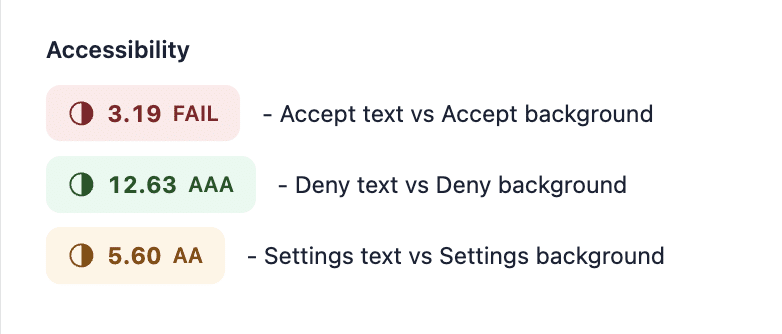
When you pick colors for your banner, for example, text, buttons, toggles, or links, the contrast checker tests them against these WCAG levels. It tells you whether your choices pass or fail, and what rating they reach.
If the combination is easy to read, you’ll see a green indicator marked AAA or a yellow indicator for AA. If it’s too light or too close in color, the result turns red with a Fail label. This helps you adjust colors until your banner is accessible to more users.
How to access the WCAG contrast checker in Complianz
- Open your WordPress dashboard.
- Select Complianz from the left-hand menu.
- Choose the Consent Banner tab.
- Go to the Colors section.
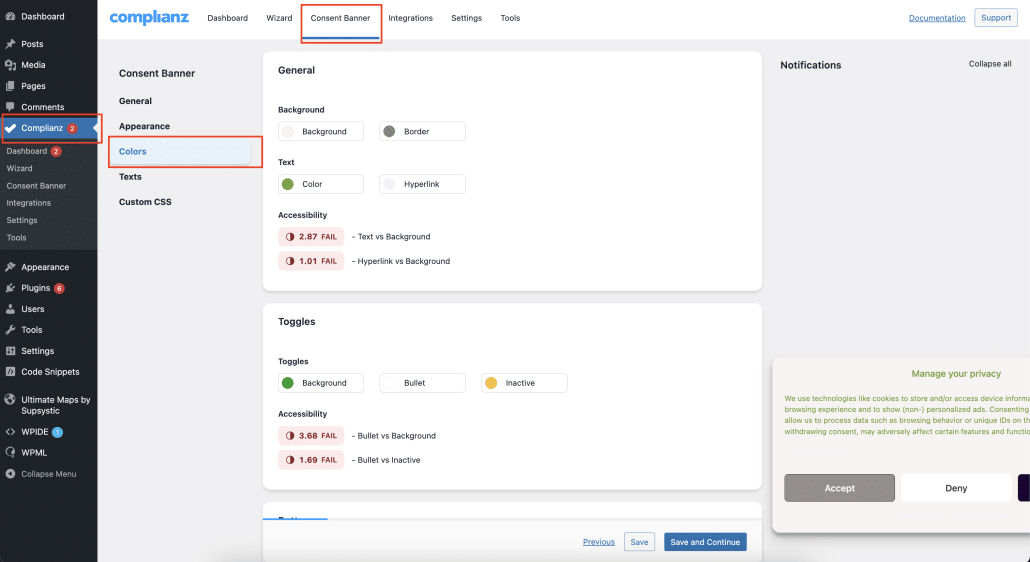
Here you’ll see all color pickers for text, background, links, buttons, and toggles. Next to each group, under Accessibility, a Contrast results panel appears beside the color picker as you edit.
How to use the WCAG contrast checker in Complianz
- Click a color field, for example, Text color or Button background.
- Pick a new color or enter a color code (HEX, RGB, HSL).
- The contrast checker instantly updates.
- Look at the Contrast results panel next to Accessibility:
- It shows the contrast ratio, such as “6.2 to 1”.
- It shows whether the result meets AA, AAA, or FAILS.
- It uses green text for compliant results, brown for minimum/acceptable compliance, and red text for non-compliant ones.
As you move the color slider, the values update in a real-time preview. You can fine-tune colors until you get a passing level.
Example scenarios
| Color Pair | Ratio | Result | Meaning |
| White text on dark blue background | 9.5 to 1 | AAA | Excellent readability |
| Yellow text on dark gray button | 5.1 to 1 | AA | Acceptable contrast |
| Gray text on light gray background | 2.2 to 1 | Fail | Too low contrast |
Tips and notes
- The contrast checker only works inside the Complianz wizard. It doesn’t change how your banner looks on the live site until you save the changes.
- You can still choose any colors you like, but the checker helps you follow accessibility best practices.
- Aim for AA or higher for strong readability.
Why Accessibility and the European Accessibility Act Matter for your cookie banner
Readable color contrast helps users who have trouble distinguishing similar colors. Meeting WCAG standards makes your website more inclusive and professional. It also helps you meet accessibility requirements in many regions, including those set out by the European Accessibility Act (EAA).
The WCAG contrast checker in Complianz is a simple, built-in tool that helps you pick colors everyone can read. It gives instant feedback while you design your banner and ensures your site stays accessible and compliant.