
Sometimes, on certain installations, one of these warnings might appear in the Complianz dashboard:
- “The CMP vendorlist files for TCF are not downloaded to, or reachable in the uploads folder yet.”
- “The folder wp-content/uploads/complianz/cmp/vendorlist/ is not writable. The TCF vendor list files cannot be saved.”
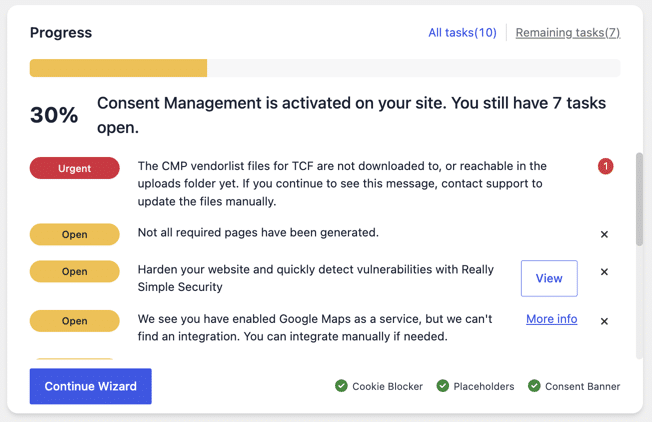
Other signs that point to the same issue:
- The IAB TCF menu stays locked after completing the wizard.
- GVL JSON files are missing from the uploads folder.
- The dashboard also flags a MaxMind/GeoIP warning, this often shares the same root cause, so it’s worth checking Manually Adding the MaxMind GeoIP Database as well.
What Causes This
The plugin downloads vendor list files from cookiedatabase.org and saves them to:
wp-content/uploads/complianz/cmp/vendorlist/
Two things can stop that from working:
- The server cannot write to the folder. The download fails silently.
- The server cannot reach cookiedatabase.org. Some hosts block outbound connections, and the site itself is occasionally unavailable. Your folder permissions can be correct and the download will still fail.
In both cases the plugin retries a maximum of 2 times, then waits 1 week before trying again, so the problem will not resolve on its own.
Without vendor-list.json, the TCF script cannot load. Alongside the dashboard warning you may see errors like these in your browser console:
- a 404 on
vendor-list.json Cannot read properties of undefined (reading 'dataCategories')
Please follow the steps below to solve this issue.
Step 1: Check Folder Permissions
Generally speaking, checking folder permissions is the first thing to do. The target folder needs to be set to 755.
If you use an FTP client such as FileZilla, please follow this guide: Folder Permissions.
If you use cPanel instead, you can refer to this article: How to Assign Permissions to Files and Folders in cPanel.
Alternatively, if you have terminal access (cPanel Terminal or SSH), you can apply the correct permissions to the entire Complianz uploads directory in one go with:
chmod -R 755 wp-content/uploads/complianz/
Step 2: Force the Vendor List Download
Once permissions are corrected (or confirmed correct), the plugin won’t retry automatically. Please try one of the options below.
Option A: Trigger an immediate re-download via URL
- Go to any Complianz admin page.
- Add
?cmplz_nocacheto the URL, like this:https://yoursite.com/wp-admin/admin.php?page=complianz&cmplz_nocache - Press Enter.
Option B: Toggle TCF to force the download
If Option A doesn’t trigger the download effectively, you can force it by toggling the TCF setting off and on again:
- Go to Wizard > Services.
- Find the question “Does your website contain scripts for advertising purposes?”
- Set it to No and save.
- Set it back to Yes and save again.
This toggle forces Complianz to re-initialize the advertising configuration and pull the vendor list fresh.
Step 3: Download the Files Manually
If Step 1 and Step 2 did not help, your server probably cannot reach cookiedatabase.org. You can put the files in place yourself.
Right-click each link below and choose Save link as, keeping the file name exactly as it is:
Check that your browser saved them with the .json extension and did not add .txt. Then upload all three by FTP or through your hosting File Manager to:
wp-content/uploads/complianz/cmp/vendorlist/
Reload your site. The dashboard warning should clear and the IAB TCF menu should unlock.
Treat this as a temporary fix. Files you upload by hand are never refreshed, and the vendor list changes regularly, so a stale copy will drift out of date. Ask your hosting provider to allow outbound connections to cookiedatabase.org so Complianz can take over the download again.
Still Seeing the Warning?
Please contact us and include all the steps you’ve already taken. This helps us identify the issue faster and, where useful, update the guide to assist the rest of the community.