
The legal documents are generated by the Wizard and will show up under ‘Pages’ with a shortcode in the content.
This shortcode is used to update and translate your documents automatically when needed.
For example; after installing other plugins, Complianz might detect changes and a new cookie scan is needed to update your Cookie Policy and Privacy Statement.
Or, new guidelines have been proposed by the ICO (UK), and legal changes have been made in the policies to be compliant.
Or maybe you are using a multi-language website with German, English and French. The shortcode will be used to push translations to the necessary policies.
We will explain how to edit your legal documents below, and what this means for updates and translations.
How to edit your documents with the Classic Editor
Find the “Document Status” on the right-hand side and use the dropdown to choose between;

- Synchronize document with Complianz (Default)
- Edit document and stop synchronization
Choosing ‘Edit document and stop synchronization’ will remove the shortcode and paste the cookie policy, now ready for editing.
If you choose ‘Synchronize document with Complianz’, your cookie policy will revert back to the shortcode. This cookie policy will apply all changes made in the wizard even when your document was not synchronized with Complianz.
How to edit your documents with Gutenberg
Please make sure you’re using the Gutenberg Block – Widget called Legal Documents – Complianz.
Select the block in the document. Then, find “DOCUMENT SYNC STATUS” on the block toolbar or editor sidebar.
It will look like this example:
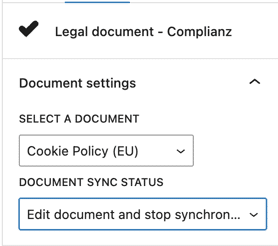
Use the options to choose between:
- Synchronize document with Complianz (Default)
- Edit document and stop synchronization
Choosing ‘Edit document and stop synchronization’ will remove the shortcode and paste the cookie policy, now ready for editing.
If you choose ‘Synchronize document with Complianz’, your cookie policy will revert back to the shortcode. This cookie policy will apply all changes made in the wizard even when your document was not synchronized with Complianz.
How to edit your documents with Elementor (and other Page Builders)
In Elementor or other page builders, there is no option to enable/disable synchronization with Complianz. To edit the document in your page builder, please revert to either Classic Editor or Gutenberg to make the switch.
How to edit your documents, without disabling synchronization.
To keep your documents synchronized while editing the text, you will need to edit the HTML in the shortcode. This can be done with a filter for your functions.php, or via a MU plugin. To read more about this possibility click here!
Consequences of changing the shortcode to HTML
Not synchronizing with Complianz, so you can edit your legal documents, will change a couple of things in regards to the wizard and other functionalities:
- Your documents will not be translated automatically anymore. If you edit your documents with your own texts, you should translate these strings yourself using a translation plugin.
- Legal updates will be present in the wizard and shortcode, but can’t be pushed to the edited documents.
- If you revert back to synchronization with Complianz. The last updates in the wizard will be pushed to your documents, but your edited text will be lost.
- The cookiescan will still work, but recognized cookies and descriptions should be added manually.
Where to Find Your Generated Legal Documents
After completing the Complianz Wizard, your legal documents are automatically generated and published on your website. You can easily locate and manage them from your WordPress dashboard.
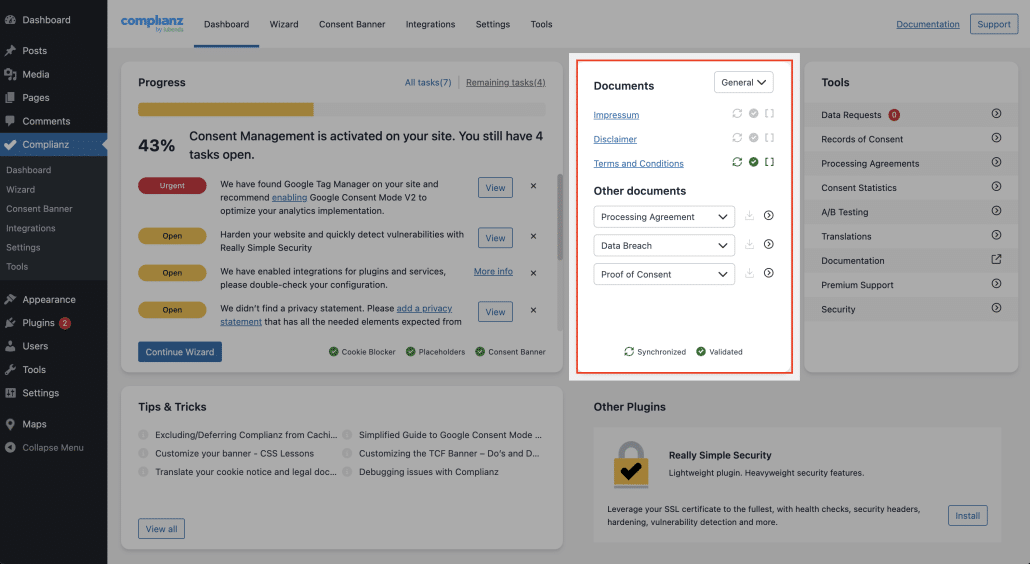
Follow these steps to find your documents:
- Go to your WordPress Dashboard
- Navigate to Complianz → Documents
- You will see an overview of all generated documents (if enabled), such as:
- Cookie Policy
- Impressum
- Disclaimer
- Terms & Conditions
- Click on any document to:
- View the content
- Edit settings
- Access the document URL
Each document is automatically assigned to a page and uses a shortcode to stay synchronized with your Wizard settings.
💡 Tip: If you don’t see a document, make sure you’ve completed the Wizard and selected the relevant legal requirements for your region.
How to Add Your Legal Document Links to Your Website Footer
To ensure compliance, it’s important that visitors can easily access your legal documents. The most common way to do this is by adding links to your website footer.
Step 1: Copy the document URL
- Go to Complianz → Documents
- Click on the document you want to link (e.g., Privacy Statement)
- Click View or Preview
- Copy the URL from your browser address bar
Step 2: Add the link to your footer
There are several ways to add links to your footer, depending on your theme:
Option A: Using the WordPress Menu (recommended)
- Go to Appearance → Menus
- Select your Footer Menu (or create one if it doesn’t exist)
- Click Custom Links
- Paste the document URL
- Enter a label (e.g., “Privacy Policy” or “Cookie Policy”)
- Click Add to Menu
- Save the menu
Option B: Using Widgets
- Go to Appearance → Widgets
- Open your Footer Widget Area
- Add a Paragraph or Navigation Menu block
- Insert the links to your legal documents
- Save your changes
💡 Important:
Make sure your legal document links are visible on every page (typically via the footer). This is required for compliance with privacy laws such as GDPR.