
Rejection Recovery is a built-in feature of the Complianz app for Shopify. It helps you show a clear message or placeholder when a visitor refuses consent for certain cookies.
When a visitor rejects a category (for example, Marketing), Complianz blocks related content such as YouTube videos or embedded iframes. Instead of showing a broken layout or empty space, Rejection Recovery displays a clean placeholder with a message and a button to update consent settings.
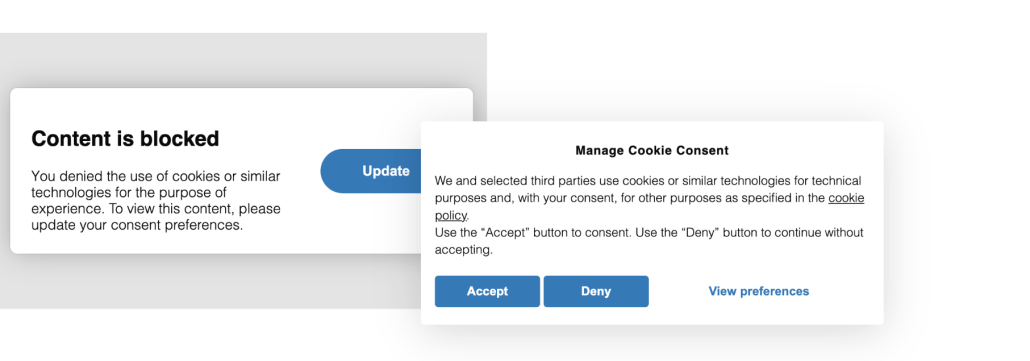
In most cases, this works automatically. However, in certain situations, you may need to apply it manually.
How Rejection Recovery Works
When a visitor:
- Rejects one or more cookie categories
- Tries to view content that depends on those categories
Complianz:
- Blocks the iframe or script
- Displays a placeholder
- Shows a button that allows the visitor to update their preferences
This applies automatically to most standard iframes, such as:
- YouTube embeds
- Vimeo embeds
- Google Maps
- Other external iframe content
When Rejection Recovery Is Applied Automatically
Rejection Recovery works automatically when:
- The content is embedded using standard iframe code
- The iframe is detected by Complianz’s autoblocking system
- The purpose category is correctly assigned
In these cases, you don’t need to do anything.
When You Need to Apply Rejection Recovery Manually
Sometimes, the placeholder does not appear automatically.
This usually happens when Complianz cannot detect the correct container where the placeholder should appear. In these situations, you need to configure Rejection Recovery manually.
Common Scenarios
Here are typical examples where manual setup is required:
1. A Plugin Uses a Custom Video Module
Some Shopify apps or theme modules do not use a standard YouTube iframe.
Instead of embedding:
<iframe src="https://www.youtube.com/embed/xyz"></iframe>
They:
- Inject the video with JavaScript
- Wrap it inside multiple custom div elements
- Load it dynamically after page load
⚠️ Because of this structure, Complianz may block the iframe but cannot determine which container should display the placeholder.
Result: The video disappears, but no consent message is shown.
💡 In this case, you must manually add the required class and attribute to the correct parent container.
2. The Iframe Is Deeply Nested
Sometimes the iframe is inside several nested elements, for example:
<div class="video-wrapper">
  <div class="custom-module">
    <div class="media-container">
      <iframe src="..."></iframe>
    </div>
  </div>
</div>
⚠️ Complianz may block the iframe, but it does not know whether the placeholder should appear in:
- .video-wrapper
- .custom-module
- .media-container
💡 Since this cannot be determined automatically, you need to define the correct container manually.
3. The Content Is Injected Dynamically
Some themes load content only after user interaction or via JavaScript.
For example:
- A “Click to play” video button
- A lazy-loaded banner
- A dynamic product video section
⚠️ In these cases, autoblocking works, but Rejection Recovery may not attach the placeholder automatically.
💡 Manual configuration ensures the consent message appears in the correct place.
4. Non-Standard YouTube or External Embeds
If a plugin:
- Rewrites the YouTube embed URL
- Uses a background video system
- Converts the iframe into a script-based player
⚠️ Complianz may not detect the structure properly.
💡 In these situations, you must manually apply Rejection Recovery to the appropriate container or use a standard integration code.
How to Manually Apply Rejection Recovery
To use Rejection Recovery manually, you must:
- Add a specific CSS class
- Add a required data attribute
- Apply both to the correct container element
Required Class and Attribute
Add the following to the container that wraps your video or iframe:
class="_iub_cs_prompt"
data-iub-purposes="3,s"
What These Mean
- _iub_cs_prompt → Tells Complianz to display a consent placeholder in this element
- data-iub-purposes=”3,s” → Defines which consent categories must be accepted before the content loads
⚠️ Important: The purposes must match the purposes assigned to the blocked content.
For example, YouTube videos often require Marketing and/or Measurement consent, depending on your configuration.
You can use the following purpose IDs:
- 1 – Necessary
- 2 – Functionality
- 3 – Experience
- 4 – Measurement
- 5 – Marketing
- s – Selling of personal information
- sh – Sharing of personal information
- adv – Targeted advertising
- sd8 – Sensitive Data (Precise Geolocation Data)
Example:
data-iub-purposes="5,adv"
Choosing the Correct Element for Rejection Recovery
In most cases, you should apply Rejection Recovery directly to the <iframe>.
This is the default and recommended approach.
Only apply it to a container element if the iframe is deeply nested or does not represent the full visible content area.
Default Rule: Apply It to the <iframe>
If your embed looks like this:
<iframe src="https://www.youtube.com/embed/..."></iframe>
Add the required class and attribute directly to the iframe:
<iframe
 class="_iub_cs_prompt"
 data-iub-purposes="3,s"
 src="https://www.youtube.com/embed/...">
</iframe>
This works in most standard embed cases.
If the iframe controls the visible video area, this is the correct and simplest implementation.
Always start here.
If the iframe is deeply nested inside multiple containers and the Rejection Recovery placeholder does not appear correctly, apply the class and attribute to the main visible parent container instead.
Test the Behaviour
Always test in an incognito window.
- Open the page
- Reject the relevant cookie category
- Refresh the page
You should now see:
- A consent placeholder
- A message explaining that the content is blocked
- A button to update preferences
Then:
- Accept the required category
- Refresh
The video or iframe should now load normally.
Autoblocking Limitation
Rejection Recovery is not automatically applied in all cases because Complianz cannot determine through code which element is the ideal container for the placeholder.
This is common when:
- A theme uses custom video modules
- A Shopify app injects videos dynamically
- The iframe is deeply nested
- The embed code is non-standard
Manual configuration ensures the placeholder appears in the correct location.
If the Placeholder Still Doesn’t Appear
If it does not work:
- Check that the purposes match the blocked content
- Make sure the class is added to the correct parent container (as mentioned above)
- Ensure there are no JavaScript conflicts
- Clear cache and test again
If a plugin uses a non-standard embed method, consider switching to a standard iframe embed, which is easier for Complianz to detect and manage.
Add Content in Place of Pre-Blocked Scripts
Consider Rejection Recovery is not limited to iframes.
You can use it for:
- Scripts
- External widgets
- Custom tracking elements
- Third-party integrations
To do this, simply add:
class="_iub_cs_prompt"
data-iub-purposes="x"
Replace x with the purpose ID required for that script.
This allows you to show a notice or placeholder wherever needed on your page.
💡 In most cases, Complianz handles this automatically. However, when custom embeds or plugins interfere with detection, you can manually enable the feature by:
- Adding the _iub_cs_prompt class
- Setting the correct data-iub-purposes attribute
- Applying both to the correct container element
If you follow the steps in this guide, you can easily implement Rejection Recovery on any Shopify store using the Complianz app for Shopify.