
Your Shopify store needs a Cookie Policy and a Privacy Policy to keep customers informed about the data you collect and how they can manage their preferences. Complianz for Shopify generates both, and keeps them in sync with the services running on your site.
If you’re using the Complianz app for Shopify, setting up a Cookie Policy is easy, and in this guide, we will walk you through the process step-by-step.
Privacy regulations like the GDPR require you to be transparent about the data you collect and the third-party services you use. Cookies store information about visitors, browsing preferences, cart items, analytics, and your visitors have the right to know how this information is used.
A Cookie Policy covers the cookies and tracking technologies your site uses. A Privacy Policy covers the wider picture: what personal data you collect, why, and how customers can exercise their rights.
With Complianz for Shopify, generating and setting up your Cookie Policy and Privacy Policy is simple and helps your store stay compliant. Let’s dive into the steps to set it up.
Install the Complianz Consent app from the Shopify App Store. Once installed, you'll see four main menus in the app sidebar:
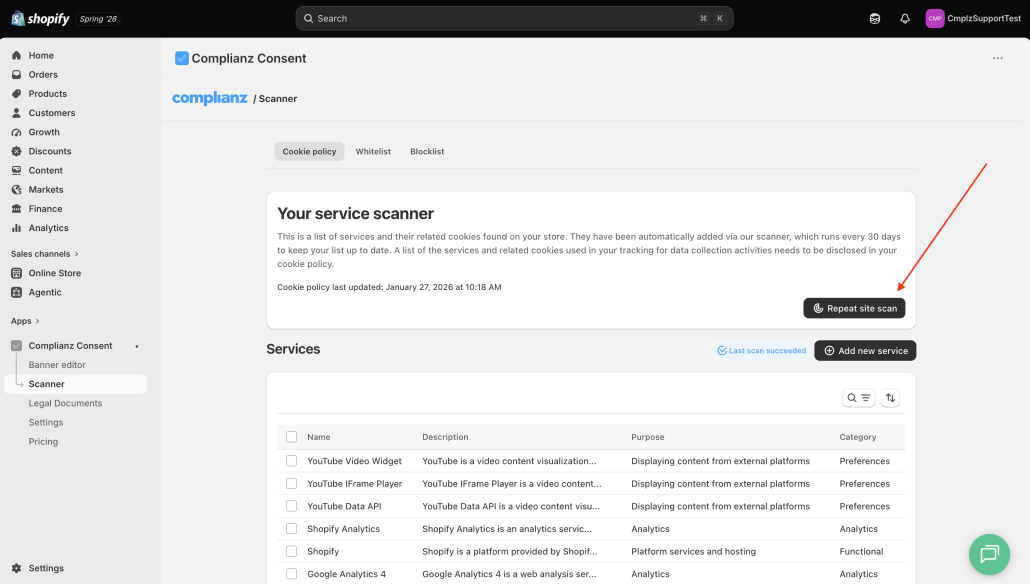
From the app sidebar, open Scanner.
Click Repeat site scan. Complianz scans your storefront to detect every third-party service in use (Google Analytics, Meta Pixel, YouTube, Shopify apps, and more).
When the scan finishes, you’ll see a Services table with the description, purpose, and category of each detected service. This list feeds directly into your Cookie Policy and Privacy Policy, so anything running on your store is automatically reflected in your documents.
You can also add a service manually with Add new service if the scanner missed something, or if you know you’ll be adding it soon.
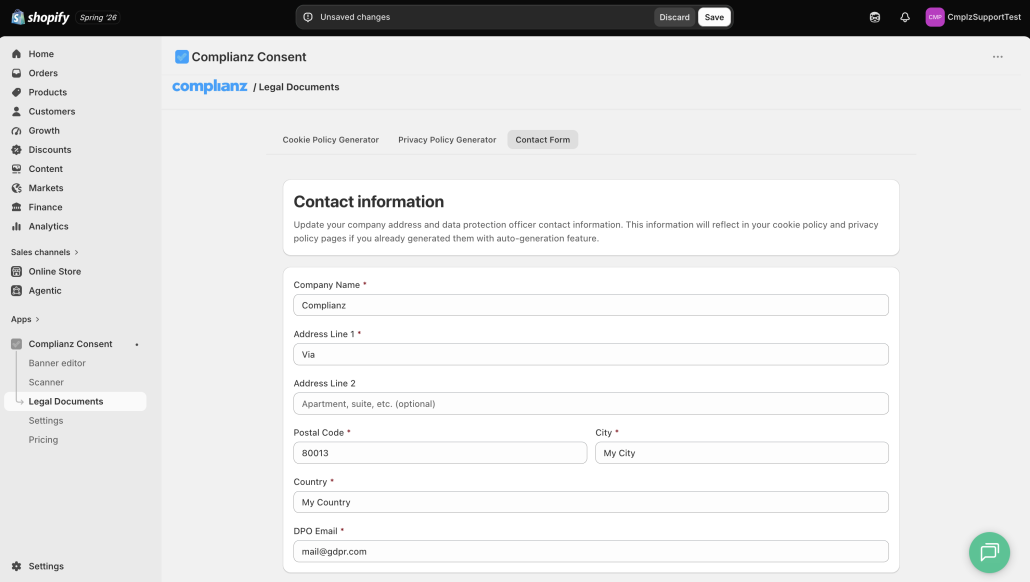
From the app sidebar, open Legal Documents, then switch to the Contact Form tab.
This is where you enter the company details that appear in both your Cookie Policy and Privacy Policy:
Any policy you generate afterward pulls this information straight in. If you’ve already generated your policies and then update your contact info, the changes reflect automatically.
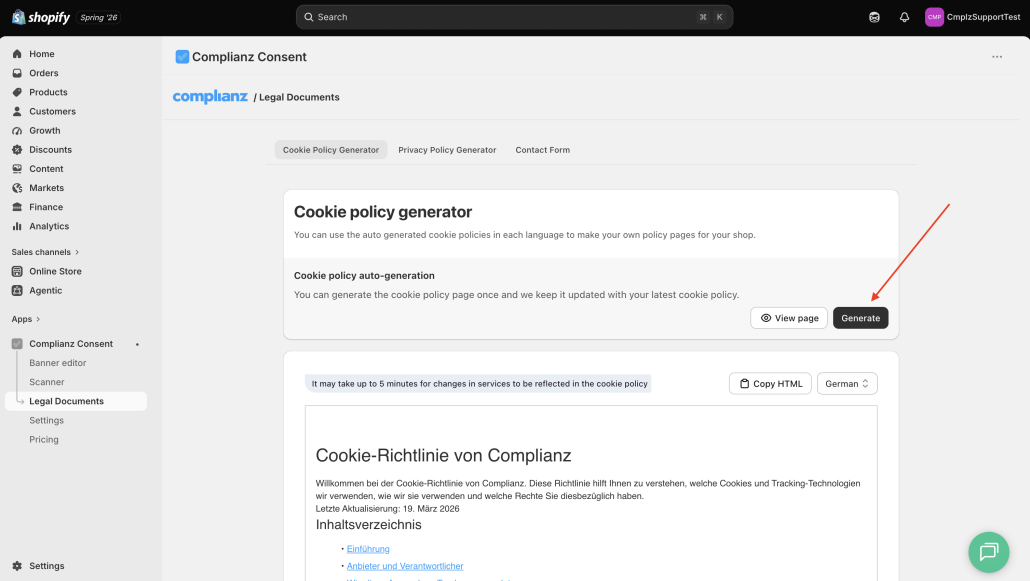
Still in Legal Documents, switch to the Cookie Policy Generator tab.
Click Generate. You’ll see a confirmation message: “Page generated successfully”.
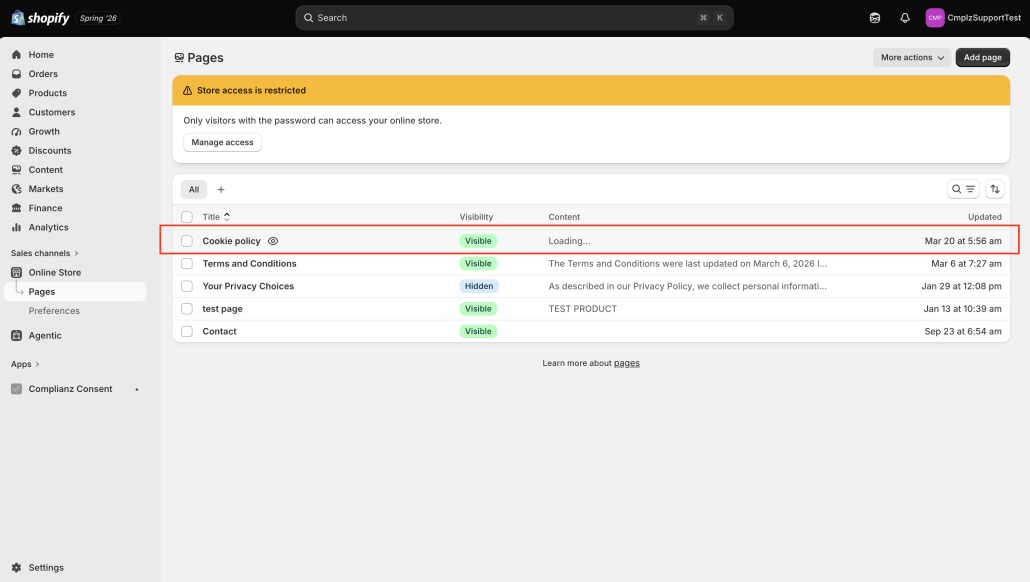
A new Cookie Policy page appears in your Shopify Pages list, ready to link from your store footer or cookie banner.
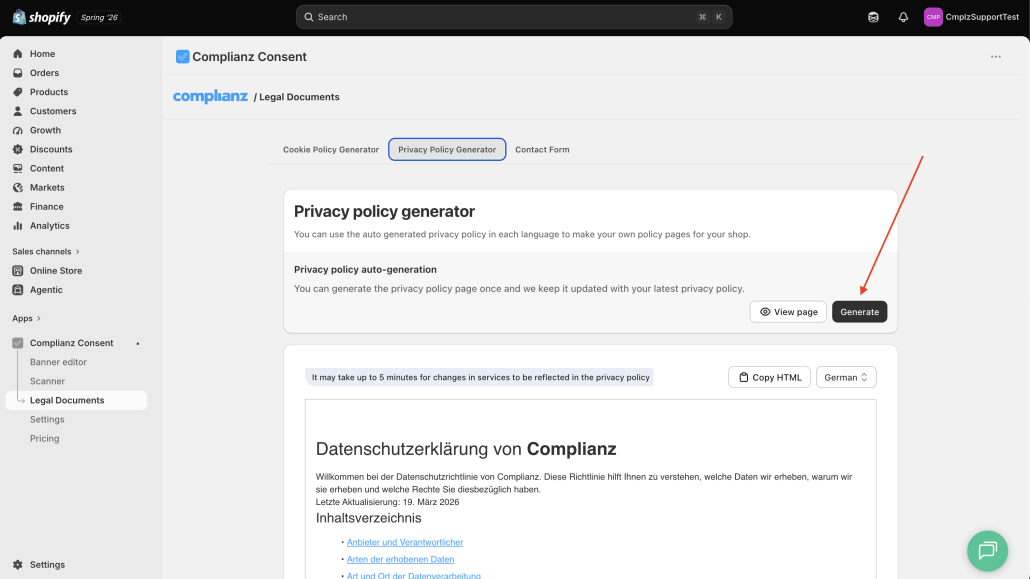
Switch to the Privacy Policy Generator tab.
Click Generate. Complianz creates a Privacy Policy tailored to your store, pulling in the services from the Scanner and the contact info from the Contact Form. A new page appears in your Shopify Pages list, and behaves the same way as the Cookie Policy: same preview quirk, same overwrite behavior if you regenerate.
Once your policies are live, Complianz keeps them accurate as your store changes:
If you’d rather manage the HTML yourself, both the Cookie Policy Generator and Privacy Policy Generator tabs have a Copy HTML option. Paste the HTML into a custom Shopify page for full control over the layout.
Complianz has received its Google CMP Certification to conform to requirements for publishers using Google advertising products.